
Importance of Regularly Deleting Your Search History

Browsing is completely harmless, right? That is, until your browsing history reveals all of your private information to a stranger. That’s why you need to make a habit of regularly deleting your search history.
Online safety consists of many practices, and good browser hygiene is one of them. To maintain your online security, you should also consider using a password manager and taking a privacy test to pinpoint your network’s vulnerabilities.
Your search history is a window into who you are. In the wrong hands, it can cause lots of problems for you. Here are some things to keep in mind as you work on your browser hygiene.
Protect your privacy
The most obvious reason to regularly delete your search history is to protect your privacy. While this is most important when you’re using a public computer, it comes into play on your private computer as well. After all, you don’t want anyone to be able to glean personal information from your search history.
Think for a moment about everything you’ve done on the web today. Maybe you bought round-trip flights from San Francisco to Chicago and then searched for the best restaurants in Chicago. This gives away your city of residence as well as the trip you’re planning to take. Combined with the rest of your browsing history, this information could be damaging if it is accessed by someone malicious.
While being concerned about protecting your personal information online may seem paranoid, it’s actually quite wise. Once someone has access to your private information, you’re at risk of identity theft, scams, and other safety concerns.
Don’t leave breadcrumbs
Remember that old fairytale about Hansel and Gretel? When it comes to online safety, you don’t want to be leaving a trail of breadcrumbs for hackers to follow. Failing to delete your browsing history can give them just what they need to attack.
The biggest concern is when a hacker already has one of your passwords. This could easily happen if you use simple passwords or one of your frequently visited websites has a security breach. Armed with a known password, hackers can use your browsing history to know which websites you visit frequently. Then, they can try the known password on each of these sites, hoping they will gain access to more of your accounts.
That’s why it’s so vital to utilize a password manager and have different passwords for each of your accounts. If one is compromised, your other accounts won’t necessarily be at risk. It’s best to delete your search history at least twice a month to reduce the chances of getting hacked.

Go incognito
For an extra layer of protection, make a habit of browsing in an incognito window. This makes it so that your search history is not saved to your device, which means you don’t need to worry about deleting your search history later.
It’s very simple to go incognito. All you need to do is open a new incognito window whenever you use Google Chrome. If you prefer to use Safari, you can find the option to open a private browsing window in the Settings.
Unfortunately, using a private window doesn’t make you completely anonymous online. Your search history isn’t an issue, but clever hackers may be able to track your activity while you are actually online.
To prevent this, consider using a VPN while you are browsing. Your online activity will be completely hidden by the VPN, and your browsing data won’t get leaked.
Information on VPNs.
Deleting browsing history wipes traces of your online activity from your devices, but not the internet. A VPN, however, lets you hop on the internet with as if it has no memory. It does that by masking your IP true IP address. (Funny thing, you’d still have to clear your history to keep your device clean!)
If you’re fairly new to VPNs, start out by learning the basis. We have article just for you called IP 101.
If you know about VPNs but are only interested in the free ones, read more here.
If you want information on the top reviewed VPNs for privacy, safety and online access, check about our exclusive VPN Simplifier.
Another option is to use Tor. Tor is a program that ensures you stay anonymous by randomly bouncing traffic across a server network. Be especially careful when using Tor to access the dark web, as you may become vulnerable to experienced hackers or cybercriminals. Another disadvantage of using Tor is that it’s much slower than other browsers. Still, it’s free and easy to download–and it keeps you anonymous.
How to delete your browsing history
Once you’ve committed to deleting your browsing history twice a month, you just need to figure out how to do it. It all depends on which browser you’re using. You’ll need to delete your search history in each browser separately if you use multiple browsers during that time.
How to clear browsing history on Chrome

Here is a look at how Google support tells you to do go about erasing your browsing history (but we show you right below two other ways to get to the same page faster).
- Open your Chrome browser
- Click on the “More” icon at the very far upper top right of any Google page:
- First click on More Tools
- Then Clear Browsing Data
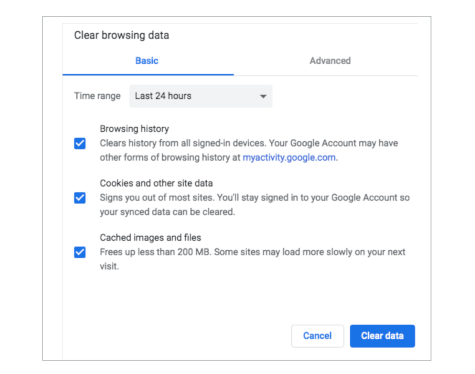
- A box will appear that lets you choose how far back you want to clear your browsing history. Clear an hour’s worth of browsing data, 24 hours’ worth, the past seven days, the past four weeks, or for all time.
- If you want to, you can additionally clear “Cookies and other site data” and “Cached images and files,” by checking the related boxes.
- Once you’ve made your choices, click the blue box that says Clear Data. (There’s no reversing this action.)
As mentioned above, there are two other ways to get to the same History page (where you’ll find the prompt to Clear browsing data. Here they are:
- 1st Way: Click on the word “Chrome” at the upper left top of any Google page, then scroll down to “Clear Browsing Data”
- 2nd Way: Click on the History menu tab at the top of any Chrome page, the click on “Show Full History” at the bottom.
If you use Chrome as your everyday browser, you’re definitely not alone. It is the leading browser in the U.S. It is very simple to delete any screen record of where you’ve been online using Chrome.
Once you learn how to clear your browser data on Chrome, you’ll find it easy to do the same on any other browser.
How to delete browsing history on Safari

Safari is the second most popular browser and if you haven’t used it, you should give it try. It is the default browser for Mac computers, but it is available for PCs as well.
Safari makes it super simple to erase your steps online, on screen.
Quick history clearing: The process of clearing your browsing history on Safari is like Chrome’s. When you’re on Safari you’ll see a “History” menu tab at the top of page. Click on it and you’ll see a list of close to 20 of your most recent webpage visits. All of them.
At the bottom, are the two words you’re looking for—Clear History.
Click it, and a simple window pops up, not a complete page. It simply asks you what do you want to clear? “The last hour? Today? Today and yesterday? All History?”
There’s another way, just so you know. At the top left of the page when Safari is open and active, just click on the word Safari. Halfway down the drop-down menu you’ll see Clear history. You can start there.
The Safari way.
Finally, here’s how Safari support guides you if you Google the topic:
Delete history, cache, and cookies
Here’s how to clear information from your device:
- To clear your history and cookies, go to Settings > Safari, and tap Clear History and Website Data. Clearing your history, cookies, and browsing data from Safari won’t change your AutoFill information.
- To clear your cookies and keep your history, go to Settings > Safari > Advanced > Website Data, then tap Remove All Website Data.
- To visit sites without leaving a history, turn private browsing on or off. When there’s no history or website data to clear, the setting turns gray.
Clear browsing history on Microsoft Edge

Internet Explorer, owned by Microsoft, was the king of internet browsers at one time, but it was replaced by Microsoft Edge as the default browser on all new versions of Windows. Together, they seem to account for about 5% of the browser market. (That shows you how dominant Chrome has become.) Explorer is just about history now. Here are Microsoft’s instructions for clearing browser history for Edge:
First off, they advise turn off “sync,” because items that are synced will get cleared over all synced devices.
- Select Settings and more > Settings > Privacy, search, and services .
- Under Clear browsing data, select Choose what to clear.
- Choose a time range from the Time range drop-down menu.
- Choose the types of data you want to clear. (They provide options, so if you want to keep passwords and form-fill data, you can.)
- Select Clear now.
Firefox: History is on your side.

Firefox is the third-most popular internet browser. Like Chrome and Safari, it’s reliable and easy to use. You can also delete your tracks pretty easily on this browser too.
Oh… It’s basic and good to know something else first, which is to check your own online history routinely, and see what your browser is catching—in other words, to see it would tell you or someone else where you’ve been browsing.
When you’re browsing using Firefox, check out the very top of the window and you’ll see the “History” menu sandwiched between View and Bookmarks. Click on the menu and you’ll see (be reminded of) where you’ve been cruising online.
It won’t miss a thing.
Here’s how Firefox answers the question, “how do I clear my browser history?” For some reason, they make it more complicated than it needs to be.
- Click the Library button, click History and then click Clear Recent History…
- To select how much history you want to clear, click the drop-down menu next to Time Range to Clear to choose how much of your history Firefox will clear. …
- Finally, click the Clear Now button
Private browsing: Your browser stops keeping track.
It’s time to take a closer look at browsing the internet in private mode—it’s named differently on different browsers, but they all do the same thing.
Google Chrome says “Private browsing essentially lets you prowl around the internet with your browsing history turned off.”
Incognito mode, which is Chrome’s name for private browsing, turns your browser’s history-tracking capabilities off. Once you close your private window, there won’t be a list of websites showing where you’ve been during that session.
In fact (and technically), when you select the option to browse in a “privately,” you essentially switch to a private window.
Think of it like entering in a “non-tracked” internet session on your browser. It has a couple of other incidental benefits you might like as well. Here’s what happens, with just about all the browsers, when you go into private browsing mode:
- It prevents you from accidentally, automatically and inadvertently “saving” your login credentials and other personal information on some websites. That’s a helpful feature when you’re on a shared or public computer.
- It gives you what’s called “pure” search results, because it won’t be influenced by your previous non-private-browsing history, cookies, social media, frequently visited pages, etc.
Let’s look at what the browsers have to say about their private browsing feature, starting with Chrome.
Chrome: “incognito mode.” (Incognito means “having one’s identity concealed.”) That’s not completely accurate—you’ll see why in a bit—but what the heck. Google explains it like this:
“You’ve gone incognito. Now you can browse privately, and other people who use this device won’t see your activity. However, downloads and bookmarks will be saved. Chrome won’t save the following information: Your browsing history; Cookies and site data; Information entered in forms.”
However, Google does remind you that, “Your activity might still be visible to: Websites you visit; Your employer or school; Your internet service provider.”
Firefox: “Private Browsing” Why not just call it like it is? Firefox does. Here’s what they say.
“You’re in a Private Window. Firefox clears your search and browsing history when you quit the app or close all Private Browsing tabs and windows. While this doesn’t make you anonymous to websites or your internet service provider, it makes it easier to keep what you do online private from anyone else who uses this computer.”
Safari: “Private browsing enabled”
Safari explains it as if they slip into a memory lapse when you enter (enable) private browsing. They say this:
“Safari will keep your browsing history private for all tabs in this window. After you close this window, Safari won’t remember the pages you visited, your search history or your AutoFill information.”
Here’s what you need to keep in mind when you enter the private browsing zone:
- The screen changes somewhat
- You are not anonymous to websites or your internet service provider
- It helps keep what you do online private from anyone else who uses the computer after you
- You will clear out the search and browsing history when you quit the app or close all Private browsing tabs and windows.
- Downloads and bookmarks will be saved
- Your activity will still be visible to websites you visit, to your employer or school
But you still need to keep two important things in mind:
- Private or incognito browsing is still not the same hiding your identity on the internet. It doesn’t hide your IP address from your internet provider or websites you visit. So even though there’s not an on-screen “history” of where you’ve been online, you still leave digital fingerprints on the internet.
- You MUST close the private browsing window after your online session to keep it private. If you don’t, your private browsing history stays up on the private window. So, while you don’t have to clear your private browsing history, you have to close the private window to make that browsing history disappear.
However, if we’re sticking strictly to the topic of deleting browsing history, then knowing about private browsing should be of great interest to you.
Cleared from your browser and from on screen, but NOT erased on the internet
Here’s something you should know that might be very important to you. You have to do more than clear history to stay private with your internet comings and goings.
While clearing, deleting and hiding browsing history and activity removes it from your on-screen reviewable list of visited sites, it does not erase your visit to websites on the internet.
In other words, even though the next person to use your computer won’t be able to discover where you’ve been when you clear your history, others could. For instance, your internet service provider has a digital record of the websites you visited. More than that, they typically share that information with law enforcement if presented a warrant or sell it to advertisers.
The websites you visit also know that you have been there. Well, they at least know your device has been there.
They’re not sharing your name and address, per se, or publishing on lists. Still, they are identifying where your computer/device has been online.
How? Do they do that? How do they know it’s “you”?
Through your IP address.
Your IP address: your digital “fingerprint” on the internet.
Your IP address has nothing to do with your browser, but it everything to do with your internet connection.
Think of an IP address as the “home address” for your internet connection. It’s how websites know to send information to you and not some other internet user across the globe.
Your internet address at home is not the same as the internet address at your local coffee place, just like your home mailing address is not the same as your work mailing address.
There is a way to hide your home IP address and, yes, your internet provider won’t be able to see what you’re doing online. But…hiding you IP address still won’t help you delete your computer or mobile on-screen browsing history.
In other words, you still need to know how to delete your browsing history if you don’t want your wife, kids, friends, employer or grandmother to know where you’ve been online. So, if you just want to ensure you erase your internet footprints on your computer and browser(s), deleting your history properly will work for you.
But if you’re not hiding anything (truly not trying to be sneaky) then it may not be necessary to clear your browser every time you go online. Why? Because having that history list there comes in extremely handy if you spend a lot of time getting information online.
Your browser history is there for your convenience, not to “track you.”
Each time you visit a website, your internet browser (Chrome, Firefox, Safari, Opera, etc.), saves a copy of every page that you visit. This list of web pages—and related pieces of information, such as date of visit – is your web browsing history.
It’s there to make life easier for you when you’re online.
- Isn’t it easier to look at your history list to find that website on grilling a steak you visited last week, rather than starting with a fresh Google search?
The Google History feature has you covered when it comes to helping you find past visits.
- There is a list of your 10 most recent closed websites
- That’s followed by 15 entries of your computers recently visited sites
- Finally, you can click on show full history, and it’s all there.
Google even has a history search box…it looks like this:

So, you can type in the name of that famous grill master, and if you visited that site (and haven’t deleted the history) you’ll see all possible related searches. You’ll see exactly where you’ve been.
Of course, that means so can anyone else who uses that computer after you, if you keep your history alive.
That’s the point of all this. To help educate you about managing or deleting your browsing history on your computers and other internet connected devices. Because our Androids and iPhones—and tablets too–and browser histories too.