
What Is an IP Conflict and How Do You Fix It?
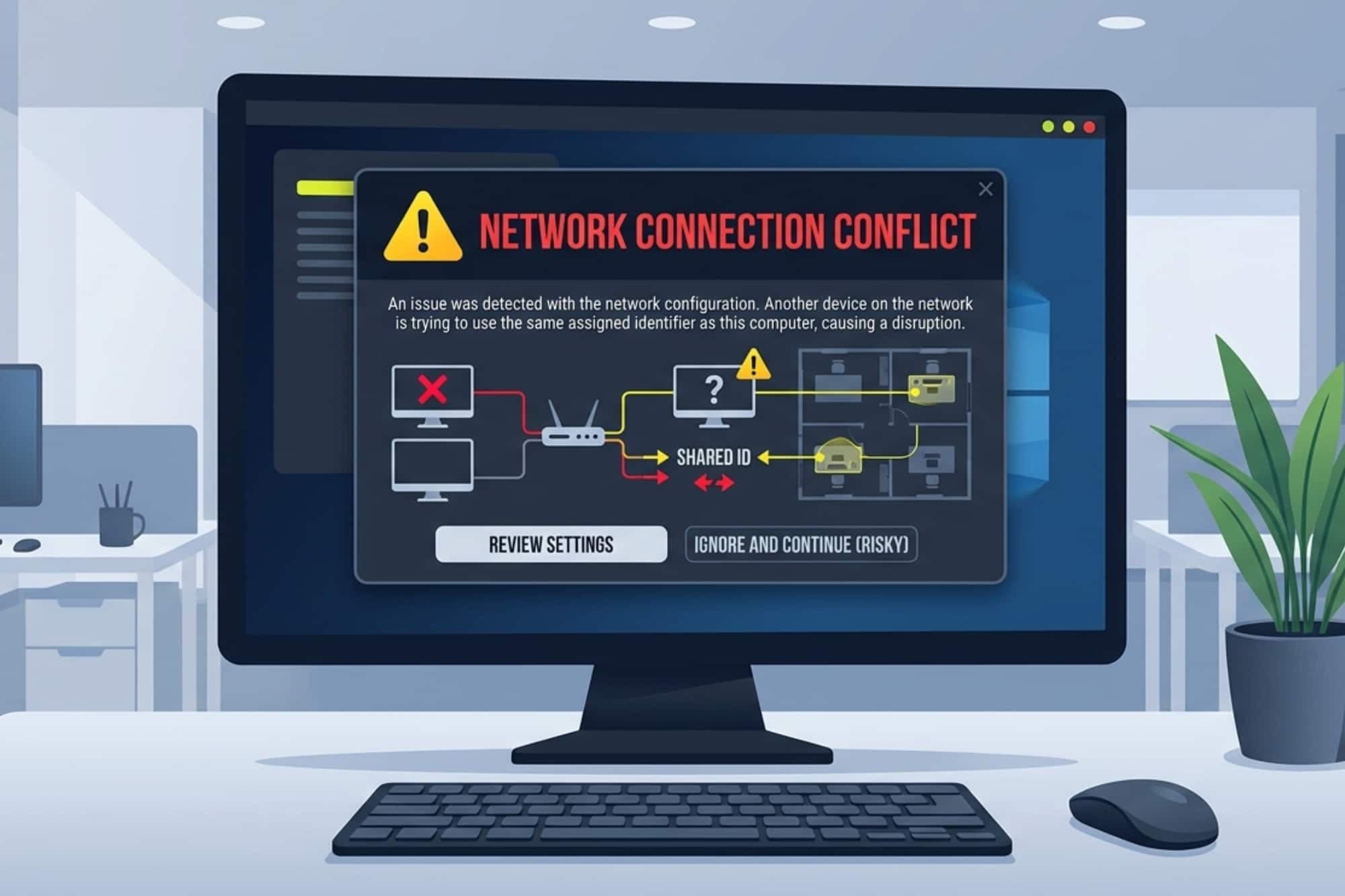
Every device has a unique IP address that directs data from the internet to the right “endpoint,” whether that is your phone, laptop, tablet, TV, or other smart device. Two devices on the same network can’t share one IP address, because that confuses the network.
If two devices manage to be assigned the same IP address, that’s called an IP conflict. It usually leads to one or both devices losing their internet connection. You may not be notified of why the internet dropped, which can be frustrating if you are trying to troubleshoot connectivity issues.
This usually looks like a sudden, unexplained drop in connectivity. One moment, things are working just fine. The next, you’re staring at an error message or your browser has stopped loading content. This kind of disconnection isn’t always a sign of an IP conflict, but if it is, you need to know how to fix it.
What Causes IP Conflicts?
IP conflicts happen when address assignment breaks down, either because of how your network is configured or because something changed unexpectedly.
Your router typically handles address assignment automatically using a system called DHCP (Dynamic Host Configuration Protocol). DHCP assigns a unique IP address to each device that joins the network, and it also keeps track of which addresses are in use. As long as that process works correctly, conflicts don’t happen. In rare cases when DHCP malfunctions, you end up with duplicate addresses – in other words, a problem.
The most common causes include:
- DHCP errors: A router or server assigns the same address to two devices, usually after a restart or a glitch in the lease-tracking process.
- Expired leases: DHCP addresses aren’t permanent. Rather, they are leased for a set period of time. If a device goes offline while holding an address and another device claims the same one before the first releases it, both could end up with a duplicate.
- Static address conflicts: This happens when someone manually assigns a specific IP address to a device, but that address is already in use or falls within the range DHCP hands out automatically.
- Misconfigured network settings: On larger networks, a configuration error can result in multiple DHCP servers assigning addresses from the same pool.
- New devices joining the network: Adding a device with a pre-configured static IP can trigger an unintentional conflict if that address is already taken.
You don’t always have to know exactly what is causing the IP conflict to fix it, but it can be helpful to understand what’s happening, so you can prevent it from happening again.
How to Know If You Have an IP Conflict
If the most common symptom of an IP conflict is a lack of connectivity, how can you determine that the cause is an IP conflict and not something like a network outage or too much traffic trying to access a website?
If you’re on a Windows device, you can look for a notification that says, “Another device is using your IP address.” Similarly, you may see a warning in the system tray (notification area) that says there is a network address conflict. Windows will sometimes move the affected device to a fallback address in the 169.254.x.x range, which is a non-routable address that signals a failure of the automatic IP address assignment.
On macOS, a dialog box will appear, warning you that another device on the network is using your IP address.
Other signs worth noting include connectivity that comes and goes without explanation, access that works briefly after a restart but drops again within minutes, or a device that stays connected but can’t actually reach anything.
How Systems Detect IP Conflicts
Networks and operating systems have built-in mechanisms for catching conflicts before or after they occur.
- Operating system alerts. Windows, macOS, and Linux all monitor for duplicate address detections and notify you when a conflict is found. These alerts typically appear within seconds and are usually your first indication that something is wrong.
- ARP probing. Before a device fully claims a new IP address, it sends out a broadcast message using the Address Resolution Protocol to check whether that address is already in use on the network. If another device responds, the first device recognizes the conflict and logs it rather than proceeding. This happens automatically in the background.
- DHCP conflict detection. Some DHCP servers ping an address before assigning it to a device. If the server gets a response, it treats the address as occupied and marks it unavailable. This is more common on enterprise-grade servers than on standard home routers.

Why Is It Important to Address IP Conflicts?
A conflict left unresolved will keep disrupting connectivity for one or both affected devices. At home, that might mean one device simply can’t get online, which is certainly frustrating. On a business network, the potential impact is larger. A conflict involving a server, a networked printer, or a key workstation can interrupt work for everyone connected to that network.
IP conflicts can also complicate troubleshooting. The symptoms look a lot like other problems, like a bad router, a DNS failure, or general network congestion. Without recognizing the IP conflict error message for what it is, it’s easy to spend time chasing the wrong cause.
Resolving it quickly restores clean address assignment and gets things working again.
Preventing IP Conflicts
Most conflicts are preventable.
First of all, let DHCP handle address assignment. Automatic assignment works well for most home and small office networks. Avoid manually assigning static IP addresses unless you have a specific reason, such as setting up a printer or home server that needs a consistent address.
If you do use static addresses, assign them outside the range your DHCP server manages. Most routers let you define which portion of the address pool DHCP draws from. Keeping static assignments in a separate block eliminates the risk of overlap.
On larger networks, confirm that only one DHCP server is active. Multiple servers handing out addresses from the same pool will cause conflicts reliably over time.
How to Fix an IP Conflict (Manual Fixes)
Fix #1: Release and renew your IP address.
On Windows, open Command Prompt and run ipconfig /release, then ipconfig /renew. This forces your device to give up its current address and request a new one, making it the most direct way to fix an IP address conflict on Windows.
On macOS, go to System Settings, select your network connection, and click “Renew DHCP Lease.”
Fix #2: Check for static address conflicts.
If any device on your network has a manually assigned IP address, confirm it doesn’t fall within the range your router’s DHCP server uses. Your router’s admin panel will show the DHCP range under its network settings.
Fix #3: Restart the router.
A router restart often clears its address table and prompts all devices to request fresh addresses when they reconnect. This can resolve conflicts caused by DHCP tracking errors.
Fix #4: Reassign a conflicting static IP.
If a device with a static address is clashing with another device on the network, update it to an address outside the DHCP range.
How to Fix an IP Conflict (Automatic Fixes)
Fix #1: Let DHCP resolve it.
On most home networks, disconnecting the affected device and reconnecting is enough. DHCP assigns it a fresh address on reconnect, clearing the conflict.
Fix #2: Update your router’s firmware.
Older firmware can contain bugs in DHCP handling that cause conflicts to recur. Checking for firmware updates is worth doing if the problem keeps coming back.
Fix #3: Use DHCP reservations.
If a device needs to always receive the same IP address, use your router’s DHCP reservation feature rather than setting a static address manually. Reservations let DHCP control assignment while still guaranteeing a consistent address for a specific device, with no risk of overlap.
How to Fix an IP Conflict (Mobile Devices)
Fix #1: Forget and reconnect to the network.
On both iOS and Android, the quickest fix is to disconnect from the network and reconnect. This forces your device to request a new IP address from the router.
- On iPhone or iPad, go to Wi-Fi settings, tap the network name, and select “Forget This Network.” Then reconnect by entering the password again.
- On Android, open Wi-Fi settings, tap the network, and choose “Forget,” then reconnect.
Fix #2: Renew your IP address (iPhone and iPad).
iOS devices allow you to manually request a new IP address without fully disconnecting. Go to Settings → Wi-Fi → tap the network name → scroll down and tap “Renew Lease.” This prompts your device to request a fresh IP address from the router, which can clear the conflict.
Fix #3: Switch IP settings back to automatic (Android).
If your Android device is using a manually assigned IP address, it may conflict with another device on the network.
Go to Settings → Network & Internet → Wi-Fi → tap your network → edit settings → look for “IP settings” and make sure it is set to DHCP (automatic), not Static.
Fix #4: Restart your device.
Restarting your phone or tablet clears temporary network settings and forces it to reconnect to the network with a new IP address. This can resolve conflicts caused by stale or duplicated assignments.
Fix #5: Restart your router.
If the issue persists across multiple devices, the problem may be with the router’s DHCP process. Restarting the router refreshes IP address assignments and often resolves conflicts across the entire network.
IP Conflict Frequently Asked Questions
What does “another device is using your IP address” mean?
This is a Windows IP conflict error message that appears when your computer detects another device on the network has been assigned the same IP address. Windows flags the conflict automatically and may temporarily move your device to a non-routable fallback address until the issue is resolved. The fix is usually as simple as releasing and renewing your IP address through Command Prompt, or restarting your router to force fresh address assignments across the network.
How do I fix an IP address conflict on a home network?
Start by releasing and renewing the IP address on the affected device. On Windows, open Command Prompt and run ipconfig /release followed by ipconfig /renew. On macOS, use the “Renew DHCP Lease” option in your network settings. If the IP conflict on your network keeps coming back, restart your router and check whether any devices have manually assigned static addresses that may be overlapping with your DHCP range.
Can an IP conflict fix itself?
Sometimes. If the conflicting device leaves the network or its DHCP lease expires, the conflict may clear on its own. On most home networks, a router restart will resolve it by prompting all devices to request new addresses. That said, if a static IP address is involved, the conflict will keep recurring until the address is manually reassigned or moved outside the DHCP range.