
Locking Down Your iPhone: How to Stop a Thief from Disabling Tracking

You’re sitting in a cafe with your phone on the table as you work on your laptop, and before you can blink, your phone is gone. Someone swiped it right from the table while you weren’t paying attention.
Or, you’re on vacation, standing on a train platform in London. You’re looking up directions on your phone, trying to figure out how to get to your destination, when someone walks quickly past and plucks your phone from your hand, then runs onto the train that’s just arrived. The doors close and the train disappears before you can realize what’s happened.
As soon as someone snags your iPhone, the first thing they’ll do is disable tracking services so you can’t find it. Then, they’ll export your data and wipe your phone.
Fortunately for you, you’re privacy-minded and reading this blog post. You’re going to learn how to keep tracking on when your phone is stolen, how to prevent a thief from stealing your phone’s data, and what to do immediately after your phone is stolen.
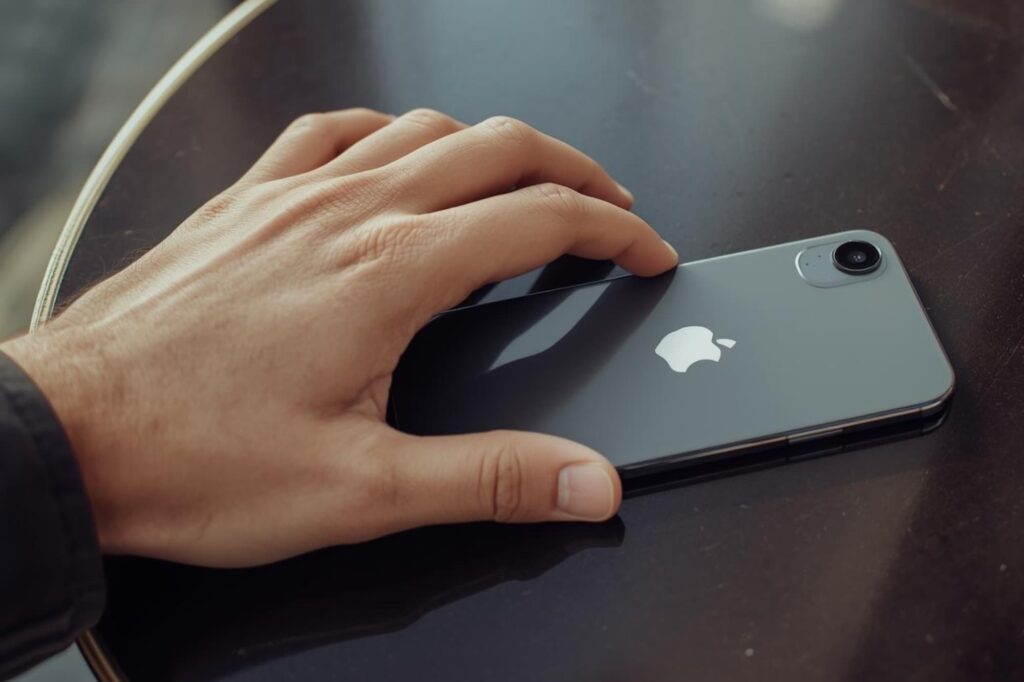
Why iPhone Thieves Immediately Turn on Airplane Mode
Once a thief has your iPhone in hand, they’ll put it in Airplane Mode. With your phone cut off from WiFi and cellular data, services like Find My iPhone can’t report a live location. By default, iPhones allow you to access the Control Center from the lock screen, by swiping down from the top right corner.
That means settings like Airplane Mode, WiFi, Bluetooth, and more can be changed without needing to know your passcode or unlock Face ID. iPhones also let you see notifications from the lock screen, by swiping down from the top left corner.
If a thief gets their hands on an iPhone with these default settings enabled, they have access to a ton of information and have a lot of control over your phone. Their goal, once they have your iPhone, is to disable tracking and go “off-grid” as soon as possible. If you can prevent them from doing that, it buys you some critical time needed to track down your phone’s location.
Core Settings to Enable Before a Theft Happens
To give yourself the best chance of tracking a stolen iPhone and limiting damage, you should enable several important settings now, while you still have full control. Below are the three most important steps to take.
Step One: Disable Control Center and Notification Center Access on the Lock Screen
- Go to Settings → Face ID & Passcode (or Touch ID & Passcode, depending on your model).
- Enter your device passcode when prompted.
- Scroll down to the section labeled Allow Access When Locked.
- Toggle off Control Center. Optionally, also toggle off Notification Center if you don’t want previews or notification access when the device is locked.
- Toggle off Accessories. This only allows storage devices to connect to the iPhone when the iPhone is unlocked.
Turning off Control Center and Notification Center access while the phone is locked prevents a thief from cutting off the network and tracking capabilities. However, if your Accessories setting is enabled, a thief could still plug a cable into your phone to extract data.
Step Two: Ensure Find My iPhone + Find My Network + Send Last Location Are On
- Go to Settings → [Your Name] → Find My.
- Tap Find My iPhone (or Find My Device).
- Ensure toggles are on for:
- Find My iPhone
- Find My Network (or “Find My network” / “Locate offline devices” depending on iOS version)
- Send Last Location
If you have these three settings turned on, you stand a chance of your phone being found. The Find My Network setting uses nearby Apple devices as “beacons” to help locate yours.
Step Three: Use a Strong Passcode + Face/Touch ID + Stolen Device Protection
- Use a six-digit passcode instead of a 4-digit one.
- Set up Face ID or Touch ID in Settings → Face ID & Passcode.
- If your iPhone supports it (iOS 17.3 or later), go to Settings → Face ID & Passcode → scroll down to Stolen Device Protection and turn it ON.
You can read this guide for more details on enabling Stolen Device Protection for your iPhone.
If a thief somehow obtains your device passcode, they may try to change your Apple ID, reset the phone, or disable locks. Apple Support says that with Stolen Device Protection enabled, many of those actions are blocked or delayed. You’ll need biometric authentication and/or face a security delay before changes can be made, especially if the device is outside a “familiar location.”
Your First Steps After Your iPhone Is Stolen
If your iPhone has been stolen, the actions you take immediately after can make the difference between losing your data forever and having a chance at recovery. Here’s what you should do next:
Mark Your Device As Lost
- Go to iCloud.com/find (or open the Find My app on another Apple device) and select your missing iPhone.
- Choose Mark as Lost/Lost Mode. This locks your device with your passcode, suspends Apple Pay cards on it, allows you to display a contact message on the screen, and prevents someone from unlocking it.
- Important: Do not remove the device from your Apple ID or the Find My network until you’ve followed all recovery steps or file a Theft & Loss claim if applicable.
You can read more details about using iCloud to recover your phone in this quick guide.
Use the Map/Location Feature—But Don’t Confront the Thief
- In the Find My app or iCloud, check if your phone appears on the map. If so, document the location but do not attempt to retrieve it yourself if you believe it’s in criminal hands. Contact law enforcement instead.
- If it’s offline or shows “last known location,” proceed to the next steps; the device may still be trackable later when it comes online.
Contact Your Mobile Carrier and Suspend Service
- Apple Support suggests calling your wireless provider and reporting the device as stolen. Ask them to suspend your account, disable the SIM/eSIM if possible, and block any suspicious usage.
- This suspension helps prevent fraudulent calls/texts/data usage and prevents thieves from intercepting two-factor authentication codes via your number.
Review Your Apple ID Account and Change Passwords
- Sign in to your Apple ID account (on another secure device) and review your trusted devices, phone numbers, email addresses, and account recovery options.
- Change your Apple ID password immediately, especially if you suspect the thief might know or guess your passcode.
- Remove the stolen device from your “trusted devices” list only after you’ve marked it as lost. Removing it prematurely can disable activation lock protections.
Remotely Erase the Device (If You Think Recovery Is Impossible)
- If you’re sure you won’t be able to get your phone back, you can erase all content and settings via Find My.
- Note: Once you erase the device, you lose live tracking. Also, the erase will only take effect when the iPhone is back online (assuming you’ve enabled Find My).
- Do not remove the device from your Apple ID or Find My list after erasure, as it could disable activation lock and make the phone easier to resell.
Monitor Your Accounts and Stay Alert for Scams
- Watch out for phishing or social engineering attempts. When your device is stolen, you become a target for fraudulent messages that claim to represent the “Find My” service and Apple Support.
- Check your Apple ID security notifications regularly for new device logins, password change prompts, and other activity.
- Consider resetting 2FA or 2-step verification tokens for critical accounts if your phone stored them.
Common iPhone Tracking Myths—Busted
There’s a lot of misinformation floating around when it comes to locating an iPhone. If you take proactive safety steps and educate yourself on what’s possible (and what’s not) when it comes to tracking down your stolen phone, you’re off to a better start than most iPhone owners.
Myth 1: “If I power off my iPhone, no one can track it.”
Reality: Not quite. On modern iPhones (iOS 15 and later), the device may still be locatable via the Find My network setting even if it’s powered off or the battery is drained.
Myth 2: “Once it’s factory-reset, it’s gone for good.”
Reality: Not necessarily. If the iPhone had Activation Lock enabled (via Find My) before the reset, the device remains linked to the original Apple ID and cannot be reactivated by a thief.
Myth 3: “I don’t mind if they access my phone, I encrypt everything anyway.”
Reality: Even if your data is encrypted, a stolen device still poses serious risks: authentication tokens, logged-in apps, saved accounts, access to banking or identity apps, and your personal contacts all become compromised. Encryption + passcode is good, but a thief having physical access still gives them a head-start.
Take Control of Your iPhone’s Security
iPhone theft happens fast. Once a thief has your device, their top priority is cutting off tracking before you even realize it’s gone. But with the right settings in place, you can take back control.
A stolen iPhone doesn’t have to mean a total loss. With a few proactive steps and a solid response plan, you can stay one step ahead of thieves and protect what matters most: your data, your identity, and your peace of mind.
Image suggestion: A hand swiping down on an iPhone lock screen to reveal Control Center
iPhone Theft Response Checklist
Use these safety checklists to ensure your iPhone is protected in the case of theft.
Before Your iPhone Is Stolen
Disable Control Center on lock screen
Disable Notification Center on lock screen
Enable Find My iPhone, Find My Network & Send Last Location
Disable USB/Data access when locked
Set a strong passcode (6-digit or alphanumeric), enable Face ID/Touch ID
Turn on Stolen Device Protection (on compatible iPhones)
Regularly back up your iPhone (iCloud or local)
Review what’s shown on your lock screen (notification previews, personal info)
Keep your Apple ID security updated—trusted devices, 2FA enabled, review account settings
After Your iPhone Is Stolen
Immediately mark your device as Lost via Find My or iCloud.com
Check for the current location via Find My
Contact your mobile carrier to suspend service, block SIM/eSIM, and report the iPhone as stolen
Change your Apple ID password and review trusted devices
Remotely erase the iPhone (only once you believe recovery is unlikely)
If applicable, start a Theft & Loss claim (e.g., AppleCare+ or insurance)
Monitor banking, email, social media, and other accounts for unusual activity
Assume tokens or sessions for critical accounts have been exposed
Alert contacts if communications apps were on the stolen device
After recovery (or replacement), reset all security settings, review what data may have been exposed, and restore from backup